

Structured Query Language (SQL) continues to be one of the most essential skills in the IT world, especially for professionals working in data-driven roles. Whether you are a software tester, data analyst, backend developer, or QA engineer, you will interact with databases at some point in your career. Among the various SQL implementations, Transact-SQL (T-SQL) a Microsoft extension to standard SQL stands out as one of the most widely used in enterprise environments.
From writing basic queries and retrieving data to creating stored procedures and handling transactions, T-SQL gives you powerful tools to work efficiently with Microsoft SQL Server.
This comprehensive beginner-friendly guide walks you through everything you need to know to get started with T-SQL, including syntax, core operations, and real-world examples. If you are enrolled in QA tester classes learning T-SQL can give you a strong advantage when validating backend data, writing test cases, and automating SQL-based checks.
What Is T-SQL?
T-SQL stands for Transact-SQL, a proprietary extension of SQL used primarily with Microsoft SQL Server and Azure SQL Database. While SQL provides the basic commands like SELECT, INSERT, UPDATE, and DELETE, T-SQL enhances SQL with additional programming features such as:
- Variables
- Functions
- Error handling
- Control-of-flow statements
- Transactions
- Stored procedures
This makes T-SQL not just a querying language but also a robust scripting and programming language for managing and manipulating relational data.
Why Should Beginners Learn T-SQL?
If you’re entering the tech world through roles such as QA testing, data analytics, development, or DevOps, T-SQL is an essential foundational skill. Some of the top reasons include:
1. Most Companies Use SQL Server
Microsoft SQL Server remains one of the most dominant database systems globally. T-SQL is the language used to communicate with SQL Server, making it a valuable and in-demand skill.
2. Essential for QA and Testing Roles
Testers often need to validate:
- Whether data is stored correctly
- If calculations performed by applications are accurate
- Data integrity in CRUD operations
- Backend workflows
This is why many QA tester classes give special importance to SQL and database testing.
3. A Critical Tool for Backend Testing
QA professionals frequently write SQL queries for:
- Verifying test data
- Checking logs
- Finding inconsistencies
- Creating automation scripts
Hence, mastering T-SQL makes testing more accurate and efficient.
4. Easy to Learn, Hard to Outgrow
Beginners can start writing simple queries within minutes, and advanced users can build highly complex stored procedures.
- In order to start SQL server goto start button select Microsoft SQL Server Management studio from the sql software installed or type ssms and run command button.
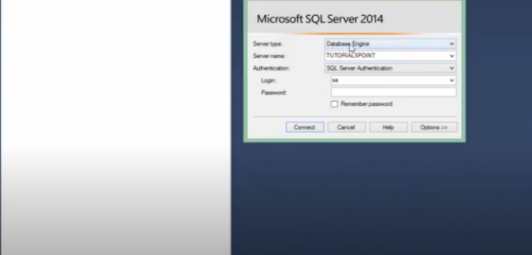
- The management studio server is opened select the server type, server name (provide the same name that you have given during installation of sql) and click connect.
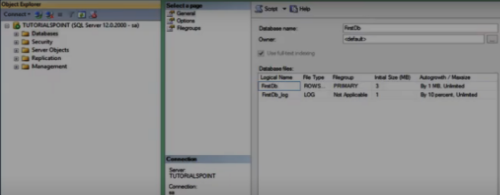
- Then create a database by right clicking on the database folder in the left side provide the name.
- Create the table by right clicking on the left side of the screen on tables. Provide all the field names and data types and save the table.
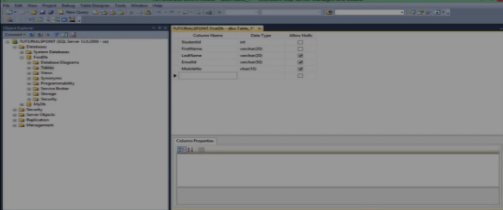
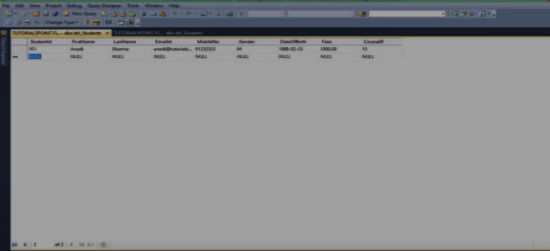
- Right click on the table and select option edit top 200 rows the structure of table is created.
- When the structure is created we can edit the details of the fields in the table. Likewise we can create many tables.
Conclusion:
Learning T-SQL is one of the smartest moves for anyone beginning their IT journey. Whether you want to become a QA tester, data analyst, backend engineer, or automation specialist, understanding T-SQL helps you work with data confidently and efficiently.
As you continue your learning journey, incorporate SQL queries into your test case design, validation steps, and automation scenarios. If you are already taking QA tester classes or enrolled in QA testing training, continue practicing T-SQL daily it will significantly strengthen your ability to test applications thoroughly.
With consistent practice, you’ll soon be writing efficient, optimized, and professional-grade SQL queries that add real value to any tech project.


























12 Responses
In order to start SQL server goto start button select Microsoft SQL Server Management studio from the sql software installed or type ssms and run command button.
1. The management studio server is opened select the server type, server name (provide the same name that you have given during installation of sql) and click connect.
1. Then create a database by right clicking on the database folder in the left side provide the name.
2. Create the table by right clicking on the left side of the screen on tables. Provide all the field names and data types and save the table.
3. Right click on the table and select option edit top 200 rows the structure of table is created.
4. When the structure is created we can edit the details of the fields in the table. Likewise we can create many tables.
Getting Started with SQL Server:
SQL Server Installation:
1.Go to start button select Microsoft SQL Server Management studio from the sql software installed or type ssms and run command button.
2.The management studio server is opened select the server type, server name (provide the same name that you have given during installation of sql) and click connect.
Create a database:
1.Create a database by right clicking on the database folder in the left side provide the name.
2.Create the table by right clicking on the left side of the screen on tables. Provide all the field names and data types and save the table.
3.Right click on the table and select option edit top 200 rows the structure of table is created.
4.When the structure is created we can edit the details of the fields in the table. Likewise we can create many tables.
To start SQL server goto start button select Microsoft SQL Server Management studio or type ssms in the run command and MS SQL Server dialog box opens.
Enter Server type, Server name and click ‘Connect’ and MS SQL Server database opens up.
1.Then create a database by right clicking on the database folder in the left side.
2.Create the table by right clicking on the left side of the screen on tables. Provide all the field names and data types and save the table.
To get started with T-SQL :
Goto Start button select Microsoft SQL Server Management studio from the sql software installed or type ssms and run command button. When the server is opened select the server type, server name (provide the same name that you have given during installation of sql) and click connect.
1)Create a database by right clicking on the database folder in the left side.
2)Create the table by right clicking on the left side of the screen on tables. Provide all the field names and data types and save the table.
a)Right click on the table and select option edit top 200 rows the structure of table is created.
b)When the structure is created we can edit the details of the fields in the table.
To Get Started with T-SQL :
– Go to start button select Microsoft SQL Server Management studio from the sql software installed or
– Type ssms and run command button.
– The management studio server is opened.
– Select the server type, server name (provide the same name that you have given during installation of sql)
– Click connect.
To Create Database :
– Right click on the database folder in the left side provide the name.
– Create the table by right clicking on the left side of the screen on tables.
– Provide all the field names and data types and SAVE the table.
– Right click on the table and select option edit top 200 rows: “the structure” of table is created.
– When the structure is created we can edit the details of the fields in the table. Likewise we can create many tables.
To Get Started with T SQL:
1.Start button- Select Miscrosoft SQL Server Management
2.Select Server Type and Name (name assignned during installation) -click
3.Right click on Database folder and create database assign a name
4.Create a table structure by providing field name and their data types
5. Once a table is created, we can add, edit details in the table.
Getting Started with SQL Server:
SQL Server Installation:
1.Go to start button select Microsoft SQL Server Management studio from the sql software installed or type ssms and run command button.
2.The management studio server is opened select the server type, server name (provide the same name that you have given during installation of sql) and click connect.
To Create Database :
1. Right click on the database folder in the left side provide the name.
2.Create the table by right clicking on the left side of the screen on tables.
3. Provide all the field names and data types and SAVE the table.
4.Right click on the table and select option edit top 200 rows: “the structure” of table is created.
5.When the structure is created we can edit the details of the fields in the table. Like wise we can create many tables.
Getting started with T – SQL
To start SQL ->
1. Go to start button ,select SQL Server Management studio (SSMS) and run command
2. Then SSMS window is opened . Then select server name and server type
3. Then create database
4. Create the table
5. Edit the table to fill the fields in the table.
Likewise we can many tables.
In order to start SQL server
*Goto start button select Microsoft SQL Server Management studio from the sql software installed or type ssms and run command button.
*The management studio server is opened select the server type, server name (provide the same name that you have given during installation of sql) and click connect.
*Then create a database by right clicking on the database folder in the left side provide the name.
*Create the table by right clicking on the left side of the screen on tables. Provide all the field names and data types and save the table
Right click on the table and select option edit top 200 rows the structure of table is created.
When the structure is created we can edit the details of the fields in the table. Likewise we can create many tables.
To start SQL server goto start button select Microsoft SQL Server Management studio or type ssms in the run command and MS SQL Server dialog box opens.
Enter Server type, Server name and click ‘Connect’ and MS SQL Server database opens up.
1.Then create a database by right clicking on the database folder in the left side.
2.Create the table by right clicking on the left side of the screen on tables. Provide all the field names and data types and save the table
In order to start SQL server goto start button select Microsoft SQL Server Management studio from the sql software installed or type ssms and run command button.
1. The management studio server is opened select the server type, server name (provide the same name that you have given during installation of sql) and click connect.
1. Then create a database by right clicking on the database folder in the left side provide the name.
2. Create the table by right clicking on the left side of the screen on tables. Provide all the field names and data types and save the table.
3. Right click on the table and select option edit top 200 rows the structure of table is created.
4. When the structure is created we can edit the details of the fields in the table. Likewise we can create many tables.
Getting started with T-SQL
Click on the start button and select Microsoft SQL Server Management studio.
From the management studio select the server type, server name (provide the same name that was given during installation) and click connect.
Right click on the left side of the screen on tables to create table and provide the names and data types and save table.
Right click on the table and select option edit top 200 rows. The structure of table is created.
When the structure is created we can edit the details of the fields in the table.